Customer Financial Info |
Top Previous Next |
Hover the mouse over the different menu options. If the cursor changes to a hand ( ), then click to go to the subject.



Customer Management: Financial Info Tab
Go to Customer > Financial Info tab
Overview
In this section, you can enter a customer's payment terms, pricing, and discount details, as well as general information such as passwords, warehouse assignments, and dealer associations.
You can also scan and store important documents related to the customer, such as lease agreements, ID copies, and proof of address.

|
|
Part 1: Terms, Pricing, and Discount FrameworksConfigurations in this zone govern how the system calculates selling prices, structures payment obligations, and applies cascading discounts at the Point of Sale (POS) and invoicing screens. |
|
Payment Terms |
Payment Dates & Due Dates•Calendar-Month Basis: Terms are calculated relative to financial months. For example, under standard 30 Days terms, an invoice processed at any point in July becomes due in full on the final day of August. •Invoice-Date Basis: To bypass the fiscal month cutoff and calculate an exact due date relative to the transaction day, leverage the Payment Due Date parameter. Due dates are indexed directly inside the invoice lookup workspace. •Exposure: Assigned terms dynamically populate inside the Quote, Credit Note, and Customer Lookup environments. Note: Select the down arrow to the right of the text box to see the terms already defined, or select the button to the right of the arrow to define a new one.
|
for example, maintenance plans and on-site help.The Service Contract details will show on the Job Cards. Select the arrow to the right of the text box to see the terms already added, or select the button to the right of the arrow to add new ones. You can also add a discount amount to be deducted per item for a specific stock group.
|
|
Price Contract |
Price contracts allow you to set a fixed price for specific products or services for a customer.
|
Part 2: Discount Hierarchy and Validation RulesThe application processes markdown rules using a strict validation hierarchy. Discounts apply exclusively to inventory profiles that have the Allow Discount property toggled to Yes. 1. Invoice-Level Discount Rate Applies an omnibus markdown percentage to the total accumulated invoice balance on the final payment form. •Negative Percentage Input (Surcharges): Entering a negative value (e.g., -10%) instructs the system to treat the value as a surcharge, adding fees to the invoice total (ideal for fuel or special handling adjustments). •Validation Floor: Checked against the Maximum Invoice Discount ceiling cap located in Invoice Options > General.
|
|
Discount per Stock Group |
Allows you to set a specific discount percentage for each customer per stock group.stock group.
•Validation: This discount is compared to the Maximum Line Discount setting in the Stock Group Setup. •Example: If the Discount per Stock Group is 20% and the Maximum Line Discount in Stock Groups is 25%, the applied discount will be 20%. •If Automatic Maximum Line Discount is enabled, the applied discount will be 25%
See also: Stock Items > Stock Groups.
|
Line Discount % |
Customer Line Discount Percentage Displays and applies the discount percentage per line item on the invoice. •If the Customer Line Discount % is less than or equal to the Stock Group: Auto Max Discount, then the Auto Max Discount takes precedence. •Discounts only apply to items with Allow Discount enabled in their settings. If Allow Discount is disabled, the Line Discount % will be ignored.
|
Pricing Type |
Pricing Type (Customer > Financial Info) The Pricing Type parameter dictates the algorithmic model used to generate line-item prices across all Invoices, Quotes, Job Cards, and Sales Orders:
Available Options:1. Price Level Maps the user directly to one of the ten predefined price tiers configured in the item master. Note: If unassigned, the system defaults to Price Level 10 (the highest retail tier). 2. Markup on Cost Dynamically calculates price by injecting a percentage markup over the Maximum of Average Cost, Supplier List Price, or Last Purchase Price. 3. Branch Price Level Inherits localized corporate price levels managed globally under Company > Branches. 4. Cost Price Drops the selling price to equal the exact internal cost value. •Minimum Markup Enforcement: If a stock group enforces a strict minimum markup percentage, the system blocks the Cost Price pricing model at checkout unless the Related Company exemption flag is enabled. Additional Notes:Select a pricing level or enter a markup percentage based on your preference. This setting affects invoices, quotes, job cards, and sales orders. A default pricing type can be set in Customer Options > New Defaults.
|
In the chapter on inventory, we looked at the 10 different prices SI+ has. If you don't select a price level then price level 10, the highest price, will be used as default. If you for e.g. you choose 5, the client will be charged Price 5, as shown in the Inventory Main form.
|
|
Pricing Markup |
If you want to use Pricing Markup, you need to change the Pricing Type away from Price Level.
|
Related Company |
Related Company Exemption FlagMarking a profile as a Related Company identifies the customer as an internal subsidiary or sister business entity. •Price Override: Automatically forces all sales to process at internal cost price, bypassing standard retail margins. •Audit Trail: Transactions are segregated into a dedicated column within Stock Turnover Reports for corporate tracking.
|
If a client pays their account, SI+ will automatically allocate the payment against the oldest invoices. See also: Customer Enquiries
|
|
Paid By |
Head Office Billing: Paid By If a customer's account is paid by another entity (e.g., a head office), select the customer responsible for making payments.
How It Works:•When an invoice is created for this customer, it is linked automatically to the designated Head Office. •Reference field preserves the local branch customer code. •When retrieving the invoice, the original customer’s details will be shown.
Related Function: Consolidate GL Location: Customer Journals > New Payment Received Difference between "Paid By" and "Consolidate GL" The main difference between Paid By and Consolidate GL lies in how statements are handled and who receives them. •Paid By: All statements are sent to the Paid By entity only. Individual statements for the other entities are not available. •Consolidate GL (Customer Journals > New Payment Received): Statements are send to each individual entity. Consolidated statements are not available. Key Trade-off:
•Choose Paid By if you want a single entity to receive and manage all statements (simpler for the payer, but no individual statements). •Choose Consolidate GL if you still need to produce individual statements for each entity.
|
Automatically Email Invoice |
The Automatically Email Invoice or Credit Note feature ensures that invoices are instantly sent to the client via email as soon as they are generated. Set it in the Financial Info tab.
|
General Customer Financial |
|
Branch |
Select the Branch this customer belongs too See Branch |
Email Password |
Setting Up Email Passwords to Comply with the POPI ActTo ensure compliance with the POPI Act, follow these steps to encrypt report attachments and set up document view passwords in Smart-iT.
Step 1: Enable Email Attachment Encryption1.Click on the Company tab. 2.Click on the Application Options button. 3.Under the Email section, check the box for Encrypt Report Attachment (this may be a legal requirement).
Step 2: Configure Document View PasswordsYou can set the Document View Password to either the customer’s ID number or a unique Email Password.
If using the ID Number: Ensure that all customer ID numbers are entered in Smart-iT under each customer's General Tab.
If using an Email Password: Ensure that all customers have a password set up under Customer > Financial Info Tab, in the Email Password field. It is recommended to use a unique password for each customer. |
Verification PIN/Password |
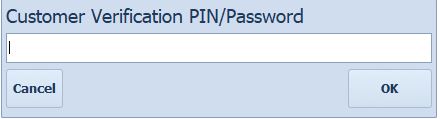
Customer Verification PINsTo protect high-value credit accounts from unauthorized employee point-of-sale selections, assign a Verification PIN inside the profile. •POS Action: The instant staff select this customer on an active invoice screen, the application halts input and displays a mandatory verification window. Processing cannot continue until the client inputs their secure PIN.
|
Dealer/AgentIf the customer was acquired through a dealer (agent), enter the dealers name in the Dealer / Agent field Setup & Usage: •All dealers must be added as a supplier (Supplier > Add Supplier). •If a dealer is specified, any invoice created for this customer will be linked to the dealer. •To view invoices linked to a dealer: •Go to Invoice Lookup and filter by the dealer’s name in the Dealer column. •The Dealers column is also available in the Stock Turnover form.
|
|
Warehouse |
|
Language |
Smart-IT allows you to print statements, invoices, job cards, and quotations in the customers preferred language. Set it in the Financial Info tab.
See also Settings: Language
|
Branch Header to use |
Select the Branch Header to UseEach customer can belong to a different Branch with unique letterheads, addresses and branding. Invoices, Statements, Job Cards, and Quotations will automatically display the correct branch details (letterhead, logo, address).
Use Case Example:
•Harji Motor Group runs Hyundai and Kia agencies under one workshop. •Hyundai customers receive job cards with Hyundai branding. •Kia customers receive job cards with Kia branding.
To manage branches, go to Company > Add or Edit Branches.
|
You set which method to use per customer. |
|
Open Item |
Open Item StatementsWith the Open Item method, customer payments must be matched to specific invoices when processed.
How It Works:•Each payment must be linked to the corresponding invoice. •Auto Reconcile: SI+ can automatically match payments to the oldest outstanding invoices first. Enable this by checking the Auto Reconcile checkbox in the customer profile.
Statements for Open Item Accounts:•Any outstanding transactions from previous periods will be displayed individually. •Transactions allocated in the current period will also appear on the statement.
|
Balance Brought Forward |
Balance Brought Forward MethodThis method simplifies account management by eliminating the need to match payments to specific invoices. •When printing a statement for a Balance Brought Forward account, all outstanding transactions from the previous period will be consolidated into a single Brought Forward transaction. •The statement will display the total outstanding amount as one summarized entry. |
|
Customer Main Form: Discount Rate sets the discount on the total amount on the invoice. Line discount and Volume discount is always checked and blocked against Stock Group Maximum Line Discount.
|
Line-Item Discount Order of PrecedenceWhen processing transactional lines, the system evaluates conditions from top to bottom, applying the first matching rule and discarding subsequent variables:
1.Special Active (Item Master) → True: Hard blocks all subsequent line discounts. 2.Volume Discount:→ True: Applies volume breaks; overrides Price Levels.
3.Customer Line Discount %: (Discount will be given even if the client have a different Price Level) (Customer form) • If the Customer Line Discount % is less than or equal to the Stock Group: Auto Max Discount, then the Auto Max Discount takes precedence.
4.Stock Group Automatic Maximum Discount (Inventory Options form): → Inherits default group markdown rules from Options.
5.Customer Discount per Stock Group (Customer form) |

Notes:
To list all clients with debit orders, go to Customer > Extra > Debit Order Lookup
To search for a specific bank account number, go to Customer > Extra > Debit Order Lookup
SCRIV Bot Routing Rules: Intent Mapping
User Query Fragment |
Intent Mapping |
Target Documentation Reference |
|---|---|---|
"How do I add a fuel surcharge to an invoice?" |
Negative Discount Rate |
Reference Part 2: Invoice-Level Discount Rate (Negative input rule). |
"Why didn't my customer get their stock group discount?" |
Discount Hierarchy |
Direct user to: Line-Item Discount Order of Precedence flowchart. |
"How do I password protect emailed statements?" |
POPI Act Encryption |
Direct user to: POPI Act Compliance Sequence. |
"How do I invoice a branch but bill the head office?" |
Paid By Mapping |
Direct user to Part 3: Head Office Billing: Paid By. |
http://bit.ly/SiCustomerFinancialInfo
