Workshop: Payment |
Top Previous Next |
Hover the mouse over the different menu options. If the cursor changes to a hand ( ), then click to go to the subject.


Job Card Payment Tab
Navigate to: Open any Job Card → click the Payment tab.
Hover the mouse over the different fields on the form. If the cursor changes to a hand () , click to get more information
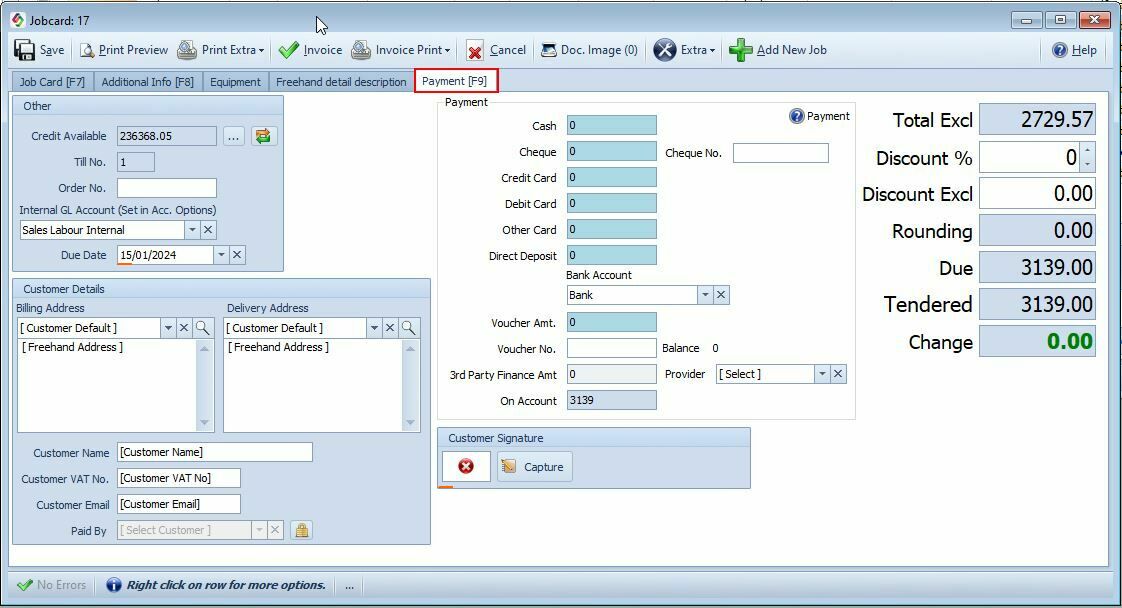
Payment Tab
Explanation of the fields in the Job Card Payment Tab
Credit Available
The amount of credit available will show. If you change the credit amount in the Customer form press the Refresh Button (  ). Select the 3 dots next to the credit amount to open the Customer form.
Till Number
•Till No. allocated to this computer. To change it go to Invoice Options and select the Assign Till Numbers tab
•The Status Bar also displays to which group the user belongs, the server and database name, Till No and License status.
Customer Order Number
The Customer Order Number is the unique order number provided by the customer for tracking purposes.
Internal GL Account
Set the default Internal GL Account under Account Options as well as in the Customer Equipment form. The Internal GL Account in the Customer Equipment form will override the Internal GL Account in Account Options.
Example: 'Vehicle Maintenance Account' if you repair one of your own vehicles.
See Internal Job Card for detail.
Voucher No.
•Enter the voucher number if the customer uses a voucher to pay with.
 If using multiple vouchers, separate them with a comma (,).
 Related: Gift Cards > Promotional Voucher & Contacts & Bulk Email SMS
Paid By (Head Office Billing)
If a customer's account is paid by another entity (e.g., a head office), select the customer responsible for making payments.
How It Works:
•When an invoice / job card is created for this customer, it is linked to the head office.
•The reference will display the original customer’s code.
•When retrieving the invoice, the original customer’s details will be shown.
Paid by is shown in the invoice lookup form and job detail form.
