Stock Extra: Print Labels |
Top Previous Next |
Hover the mouse over the different fields on the form. If the cursor changes to a hand ( ) , click to get more information.


Print Labels
Go to: Stock Items > Extra > Print Labels
The Print Labels screen allows you to select stock items and print product labels for identification, pricing, packaging, or other purposes.
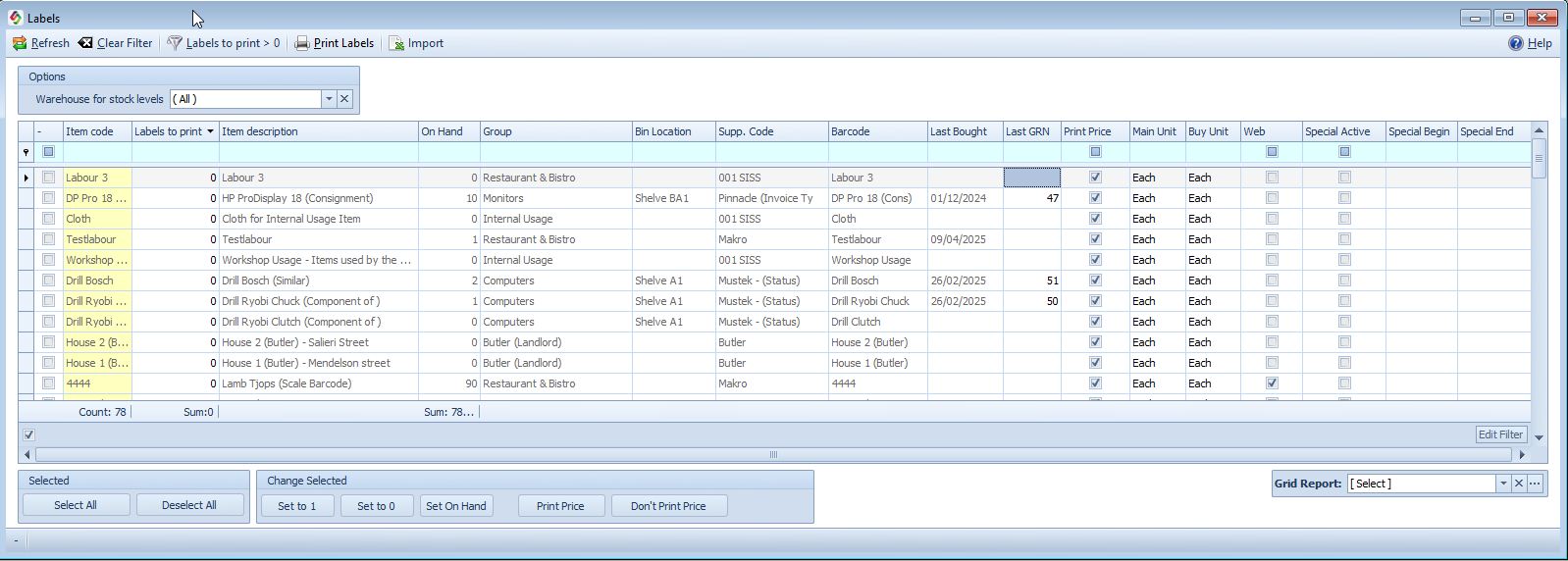
How to Print Labels
1. Filter the items: Use the available filters to find the stock items for which you want to print labels.
2. Set the label quantities: Enter the required number of labels in the Labels to Print column.
3. Set quantities automatically (optional):
•Set to 1: Sets the label quantity to 1 for all listed items.
•Set On Hand: Sets the label quantity to match the current on-hand stock quantity.
4. Click Print Labels: The Label Print Options screen opens.
5. Select a label layout: Choose an available label size or select a layout that you have designed.
6. Print: Follow the options on the Label Print Options screen to complete the printing process.
Custom Label Designs
You can design your own product labels to suit your business requirements.
When you click Print Labels, the Label Print Options screen allows you to select an available label layout or use a custom-designed label.
Other Ways to Set Label Quantities
You can also control label quantities in the following ways:
•When receiving stock: Set the number of labels to print directly on the Goods Received Note (GRN) form.
•Default quantities: Configure default label quantities in Stock Options.
Alternative Method: Print Labels from the Extended Lookup
You can print labels directly from the Stock Items > Extended Lookup form:
1. Select the required stock items.
2. Open the With Selected options.
3. Select the relevant label-button and follow the prompts.
This method allows you to print labels for selected items without first opening the Print Labels screen.
See Also
