General Customer Options |
Top Previous Next |
Hover the mouse over the different menu options. If the cursor changes to a hand ( ), then click to go to the subject.



General Customer Options
Go to: Customer > Customer Options and select the General tab
The Customer Options settings allow you to manage customer interactions, credit control, payments, and follow-ups efficiently.
Hover the mouse over the different fields on the form. If the cursor changes to a hand () , click to get more information.
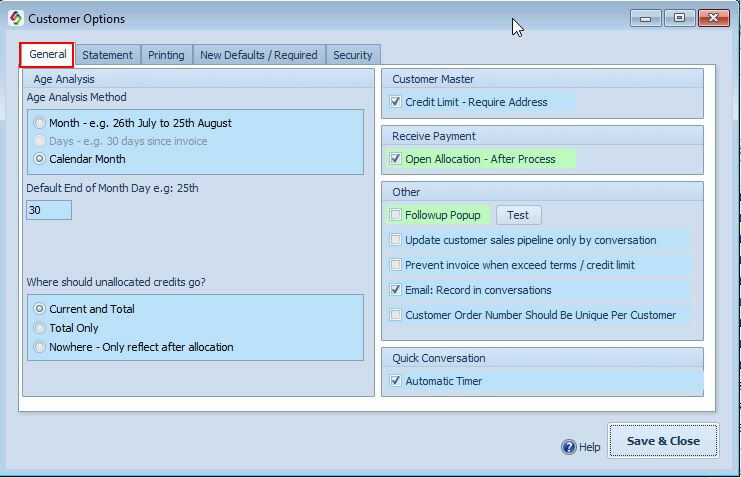
Customer Options - General Tab
Colour Coding Note:
•Fields with a green background are local settings, meaning the values may vary from computer to computer.
•Fields with a blue background are server settings and will apply to all computers.
General Customer Options |
|
Age Analysis Method This determines how aging periods (Current, 30 Days, 60 Days, etc.) are calculated for customer statements and age analysis reports. |
|
Month Option
|
Use this if your statements are sent on a fixed day each month—not based on calendar months.. Example: •Today: August 27 •Default Statement Date: 25th → Periods will be:
•Current: July 26 – August 25 •30 Days: June 26 – July 25 •60 Days: May 26 – June 25 •... and so on
Setup Steps:
•✅ Enable the Month Option •Set Default End of Month Day (e.g., 25th) → This day is used when opening your Age Analysis.
|
Calendar Month
|
Calendar Month Option (standard and most common) Use this if you prefer standard calendar months (most commonly used). •The Default Statement Date is ignored. •Aging is based on the last day of each calendar month (e.g., 31 August for Current). •All transactions from August are shown as Current.
Recommendation: Choose Calendar Month unless your business has a specific non-calendar statement cycle.
|
Where should Unallocated Credit Go |
Where Should Unallocated Credit Go? Choose how to display unallocated customer credits in Age Analysis:
•Current & Total: Credits appear in both the Current period and reduce the overall total balance (most common choice for visibility).. •Total Only: Credits reduce only the total balance (do not appear in any aging bucket). •Nowhere: Credits are excluded from Age Analysis until manually allocated (use cautiously).
|
Customer Master Options |
|
Credit Limit - Require Address |
When enabling/setting a credit limit for a customer, forces users to complete the address fields before saving. Address Verification Constraint: To block credit assignments on profiles missing structural contact details, navigate to Customer Options > General and enable Credit Limit - Require Address. |
Receive Payment Options |
|
Open Allocation - After Process |
After processing a customer payment, automatically opens the Customer Enquiry / allocation screen for immediate allocation of funds. |
Other Options |
|
Followup Pop-up |
Follow-up Pop-up Enable this option for a notification regarding uncompleted conversations (those not yet followed up or resolved). The notification will appear on your screen as shown below:
Click the Flag icon to view a list of outstanding conversations.
|
Update customer sales pipeline, only by conversation. |
Sales Pipeline Updates via Conversations Prevents direct changes to the Sales Pipeline Status in the Classification tab. Status updates can only occur through logged Conversations (ensures audit trail and proper sales process).
|
Prevent invoice when exceed terms or credit limit. |
Blocks creation/printing of new invoices if the customer is over their credit limit or has overdue payments beyond terms.
|
Email - Record in conversations |
When you send an email to/from a customer (via the system), it is automatically logged as a Conversation entry in the customer's Conversation tab.
|
Customer order number should be unique per customer |
Enforces uniqueness of Customer Order Numbers per customer. •Enabled: Duplicate order numbers for the same customer are blocked. •Disabled: Allows reuse of the same order number (e.g., for recurring orders). |
Quick Conversation Options: |
|
Automatic Timer |
When using Quick Add Conversation, the timer starts automatically to track time spent on the interaction.
|
Conversation Defaults |
After saving a conversation, automatically schedules a follow-up reminder after a set number of days (e.g., 2 days). Adjust the default interval as needed. |

http://bit.ly/SiCustomerOptionsGeneral
